WSL
切换wsl版本
管理员运行:
wsl --set-version Ubuntu 2
WSL 无法访问windonws host 上的服务
networkMode=NAT
原因是 Windows 防火墙阻止了访问, 查看这个issue
New-NetFirewallRule -DisplayName "WSL" -Direction Inbound -InterfaceAlias "vEthernet (WSL)" -Action Allow
networkMode=mirrored
另一种方法: https://zhuanlan.zhihu.com/p/15762609815 把 network 模式设置为 mirrored
同时最好打开 hostAddressLoopback,能够允许使用 IP 访问(否则只能用localhost或者127.0.0.1)
最终的.wslconfig:
[wsl2]
networkingMode=Mirrored
[experimental]
hostAddressLoopback=true
使用VPN代理时的问题
Note
这里的vpn并不是平常用的 http/https/socks5 proxy,指的是一般公司里使用的、用来访问 private network 的代理
如果需要在wsl中访问 host 上的proxy, 参考这里
WLS2 启动不了
参考这个issue https://github.com/microsoft/WSL/issues/4177#issuecomment-508826708
下载NoLsp: https://www.proxifier.com/tmp/Test20200228/NoLsp.exe
然后管理员权限启动PowerShell,然后执行:
.\NoLsp.exe c:\windows\system32\wsl.exe
WSL 内无法访问网络
使用这个东西: wsl-vpnkit
自定义wsl安装位置
参考:https://zhuanlan.zhihu.com/p/263089007:
手动下载ubuntu:https://docs.microsoft.com/zh-cn/windows/wsl/install-manual
把appx的后缀改为.zip,然后解压到想要安装WSL的目录下,我们可以得到一些文件
双击红框框出的那个ubuntu.exe(其他发行版的话也有类似的程序),等待一段时间就成功安装到当前目录啦~
需要注意的是安装目录的磁盘不能开压缩内容以便节省磁盘空间选项,否则会报错0xc03a001a
可以右键文件夹-->属性-->常规-->高级找到并关闭这个选项
wsl扩展硬盘大小
参考:https://www.jianshu.com/p/2348dc7e9aef
windows侧操作
首先关闭wsl( wsl --shutdown )
管理员打开powershell切到wsl的安装位置(自定义安装位置参考自定义wsl安装位置)
找到wsl文件系统路径,应该是ext4.vhdx这个文件
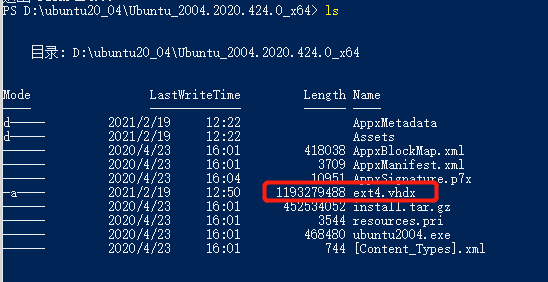
然后执行 diskpart 命令,之后会进入一个命令行操作界面,一次执行以下命令
Select vdisk file="<pathToVHD>"
expand vdisk maximum="<sizeInMegaBytes>"
其中 是vhdx文件路径,是更改后的大小,单位为MB(例如希望大小改为512G, 就是524288)
wsl内操作
重新打开wsl(打开的时候需要等待一段时间,猜测可能是在重新load文件系统)
然后执行以下命令
sudo mount -t devtmpfs none /dev
# 获取文件系统的设备名, 这里获得的是/dev/sdb
mount | grep ext4
# resize2fs 是个命令工具,如果不存在则需要安装(apt-get install resize2fs)
sudo resize2fs /dev/sdb
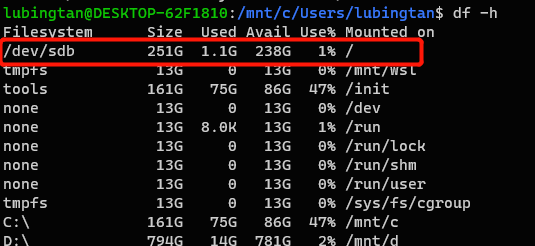
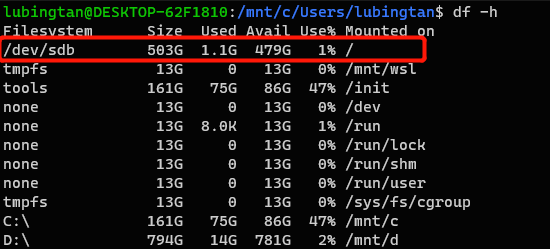
成功!
WLS2 Ubuntu安装systemd
https://zhuanlan.zhihu.com/p/180195635
安装
sudo apt install -y fontconfig daemonize
编辑/etc/profile,添加
SYSTEMD_PID=$(ps -ef | grep '/lib/systemd/systemd --system-unit=basic.target$' | grep -v unshare | awk '{print $2}')

if [ -z "$SYSTEMD_PID" ]; then
   sudo /usr/bin/daemonize /usr/bin/unshare --fork --pid --mount-proc /lib/systemd/systemd --system-unit=basic.target
   SYSTEMD_PID=$(ps -ef | grep '/lib/systemd/systemd --system-unit=basic.target$' | grep -v unshare | awk '{print $2}')
fi

if [ -n "$SYSTEMD_PID" ] && [ "$SYSTEMD_PID" != "1" ]; then
    exec sudo /usr/bin/nsenter -t $SYSTEMD_PID -a su - $LOGNAME
fi
编辑/etc/sudoers,添加
%sudo ALL=(ALL) NOPASSWD: /usr/sbin/daemonize /usr/bin/unshare --fork --pid --mount-proc /lib/systemd/systemd --system-unit=basic.target
%sudo ALL=(ALL) NOPASSWD: /usr/bin/nsenter -t [0-9]* -a su - [a-zA-Z0-9]*
然后重启,最好检查
source /etc/profile
systemctl -version
CUDA on WSL
Check out: CUDA on WSL User Guide — CUDA on WSL 13.1 documentation.
The latest NVIDIA Windows GPU Driver will fully support WSL 2. With CUDA support in the driver, existing applications (compiled elsewhere on a Linux system for the same target GPU) can run unmodified within the WSL environment.
It’s easy:
- Install latest GPU driver on windows
- Install WSL 2 and make sure to have the latest WSL kernel
windows terminal
windows terminal设置
// This file was initially generated by Windows Terminal 1.3.2651.0
// It should still be usable in newer versions, but newer versions might have additional
// settings, help text, or changes that you will not see unless you clear this file
// and let us generate a new one for you.

// To view the default settings, hold "alt" while clicking on the "Settings" button.
// For documentation on these settings, see: https://aka.ms/terminal-documentation
{
    "$schema": "https://aka.ms/terminal-profiles-schema",

    "defaultProfile": "{61c54bbd-c2c6-5271-96e7-009a87ff44bf}",

    // You can add more global application settings here.
    // To learn more about global settings, visit https://aka.ms/terminal-global-settings

    // If enabled, selections are automatically copied to your clipboard.
    "copyOnSelect": false,

    // If enabled, formatted data is also copied to your clipboard
    "copyFormatting": false,

    // A profile specifies a command to execute paired with information about how it should look and feel.
    // Each one of them will appear in the 'New Tab' dropdown,
    //   and can be invoked from the commandline with `wt.exe -p xxx`
    // To learn more about profiles, visit https://aka.ms/terminal-profile-settings
    "profiles":
    {
        "defaults":
        {
            // Put settings here that you want to apply to all profiles.
        },
        "list":
        [

            {
                "guid": "{07b52e3e-de2c-5db4-bd2d-ba144ed6c273}",
                "hidden": false,
                "name": "Ubuntu-20.04",
                "source": "Windows.Terminal.Wsl"
            },
            {
                // Make changes here to the powershell.exe profile.
                "guid": "{61c54bbd-c2c6-5271-96e7-009a87ff44bf}",
                "name": "Windows PowerShell",
                "commandline": "powershell.exe",
                "hidden": false
            },
            {
                // Make changes here to the cmd.exe profile.
                "guid": "{0caa0dad-35be-5f56-a8ff-afceeeaa6101}",
                "name": "命令提示符",
                "commandline": "cmd.exe",
                "hidden": false
            },
            {
                "guid": "{b453ae62-4e3d-5e58-b989-0a998ec441b8}",
                "hidden": false,
                "name": "Azure Cloud Shell",
                "source": "Windows.Terminal.Azure"
            },
            {
                "guid": "{c6eaf9f4-32a7-5fdc-b5cf-066e8a4b1e40}",
                "hidden": false,
                "name": "Ubuntu-18.04",
                "source": "Windows.Terminal.Wsl"
            }
        ]
    },

    // Add custom color schemes to this array.
    // To learn more about color schemes, visit https://aka.ms/terminal-color-schemes
    "schemes": [],

    // Add custom actions and keybindings to this array.
    // To unbind a key combination from your defaults.json, set the command to "unbound".
    // To learn more about actions and keybindings, visit https://aka.ms/terminal-keybindings
    "actions":
    [
        // Copy and paste are bound to Ctrl+Shift+C and Ctrl+Shift+V in your defaults.json.
        // These two lines additionally bind them to Ctrl+C and Ctrl+V.
        // To learn more about selection, visit https://aka.ms/terminal-selection
        { "command": {"action": "copy", "singleLine": false }, "keys": "ctrl+shift+c" },
        { "command": "paste", "keys": "ctrl+shift+v" },

        // Press Ctrl+Shift+F to open the search box
        { "command": "find", "keys": "ctrl+shift+f" },

        // Press Alt+Shift+D to open a new pane.
        // - "split": "auto" makes this pane open in the direction that provides the most surface area.
        // - "splitMode": "duplicate" makes the new pane use the focused pane's profile.
        // To learn more about panes, visit https://aka.ms/terminal-panes
        { "command": { "action": "splitPane", "split": "auto", "splitMode": "duplicate" }, "keys": "alt+shift+plus" },
        { "command": { "action": "switchToTab", "index": 0 }, "keys": "alt+1" },
        { "command": { "action": "switchToTab", "index": 1 }, "keys": "alt+2" },
        { "command": { "action": "switchToTab", "index": 2 }, "keys": "alt+3" },
        { "command": { "action": "switchToTab", "index": 3 }, "keys": "alt+4" },
        { "command": { "action": "switchToTab", "index": 4 }, "keys": "alt+5" },
        { "command": { "action": "switchToTab", "index": 5 }, "keys": "alt+6" },
        { "command": { "action": "switchToTab", "index": 6 }, "keys": "alt+7" },
        { "command": { "action": "switchToTab", "index": 7 }, "keys": "alt+8" },
        { "command": { "action": "switchToTab", "index": 8 }, "keys": "alt+9" }
    ]
}
GPU Driver Upgrade
Using the Nvidia APP in windows: Download NVIDIA App for Gamers and Creators | NVIDIA
Useful tools
Alfred 平替
Wox: A cross-platform launcher that simply works
基本可以满足需求:
- 搜索应用/文件
- 剪切板历史以及搜索
- 自定义快捷命令
自定义快捷键
PowerToys: Microsoft PowerToys is a collection of utilities that help you customize Windows and streamline everyday tasks
可以满足:
- 搜索应用/文件
- 自定义任何快捷键(可以指定只在某个应用中启用)